The Pages report (under Indexing in Google Search Console) is where you find out exactly which of your pages Google has indexed — and more importantly, which ones it hasn’t and why. If your content isn’t ranking, this is often where the answer lives.
Indexed vs not indexed — what’s the difference?
An indexed page is one Google has crawled, processed, and added to its search index. It can appear in search results. A not indexed page exists on your site but Google has either chosen not to index it, or hasn’t crawled it yet. It will never appear in search results until the issue is resolved.
The Pages report splits your URLs into two buckets: indexed and not indexed. You want your important content pages in the indexed bucket and your utility pages (checkout, login, thank-you pages) in the not indexed bucket.
Why pages don’t get indexed — the main reasons
Excluded by ‘noindex’ tag
Your page has a <meta name="robots" content="noindex"> tag in its source code. Google respects this and won’t index the page. This is often accidental — set via the RankAlSEO plugin‘s per-page settings, a WordPress global setting, or a conflicting plugin. See our guide: Why does my site show ‘noindex’ in the source code?
Duplicate without user-selected canonical
Google found multiple URLs with the same or very similar content and chose one to index — but it’s not the one you wanted. Usually caused by URL parameters, www vs non-www issues, or HTTP vs HTTPS. The RankAlSEO plugin sets canonical tags automatically to prevent this.
Crawled — currently not indexed
Google visited the page but decided not to index it. Common reasons: thin content (very few words), content too similar to other pages on your site, or Google simply deprioritising it due to low authority. The fix is improving the content quality and building internal links to the page.
Discovered — currently not indexed
Google knows the page exists (found it in your sitemap or via a link) but hasn’t crawled it yet. This is normal for new pages. It usually resolves within days to weeks. You can speed it up with URL Inspection → Request indexing.
Alternate page with proper canonical tag
Google found a canonical tag on this page pointing to a different URL, and indexed that URL instead. This is correct behaviour if you set the canonical intentionally. If not, check your canonical settings in the RankAlSEO plugin.
Blocked by robots.txt
Your robots.txt file is blocking Google from crawling this URL. Go to your robots.txt (yourdomain.com/robots.txt) and check for Disallow rules that are too broad. Use the free RankAlSEO Robots.txt Generator to create a correct robots.txt.
Page with redirect
The URL redirects to another URL. Google indexes the destination, not the redirect. This is usually correct behaviour — but if important URLs have been accidentally redirected, fix the redirects. The RankAlSEO plugin PRO plan includes redirect management with hit tracking.
Not found (404)
The URL returns a 404 error. Google found this URL (via a sitemap or link) but the page doesn’t exist. Either restore the page, redirect it to a relevant live page, or remove it from your sitemap. The RankAlSEO plugin PRO plan’s 404 monitor catches these automatically.
How to read the Pages report
- Go to Google Search Console → Indexing → Pages
- Check the total count of indexed pages — does it match what you expect?
- Click “View data about indexed pages” and “View data about pages that aren’t indexed”
- In the not-indexed section, look at the reason breakdown on the right side
- Click any reason to see which specific URLs are affected
- For each URL, use the URL Inspection tool to get more details
Which pages should and shouldn’t be indexed?
Should be indexed: homepage, blog posts, landing pages, product pages, category pages (if they have unique content), compare pages, documentation pages.
Should NOT be indexed: checkout pages, cart, login, account pages, thank-you pages, admin pages, search result pages, tag archives (usually), author archives on single-author sites, paginated archive pages (page 2, 3…), privacy policy and terms (optional).
The RankAlSEO plugin handles most of this automatically — it excludes the right page types by default and gives you per-page control when you need to override.
Your data right now
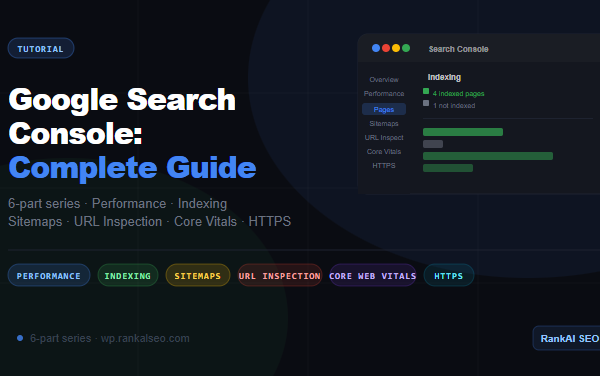
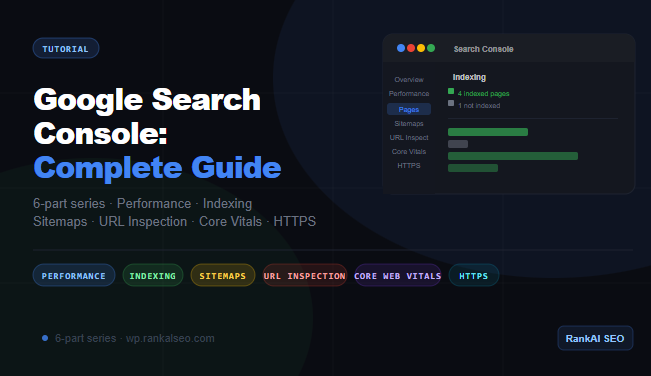
From the Search Console screenshot: 4 indexed pages, 1 not indexed. That’s healthy for a new site. The next step is to find out which page isn’t indexed and why — click “1 not indexed page” in the report to see the URL and the reason.
Action steps
- Open Search Console → Indexing → Pages
- Note how many pages are indexed vs not indexed
- Click into the not-indexed section and read each reason
- For any important page that’s not indexed, use URL Inspection → Request indexing
- For pages showing noindex accidentally, fix the setting in the RankAlSEO plugin → post Advanced tab
- Make sure your sitemap is submitted (Search Console → Sitemaps)
Next in this series: Sitemaps — how to submit your sitemap and what the status indicators mean.
RankAl SEO PRO gives you unlimited AI content generation, daily rank tracking, full-site audits, and WooCommerce SEO — all inside WordPress. From €8.99/month.