You’re checking your site’s source code — maybe after noticing pages disappearing from Google — and you find this in the <head>:
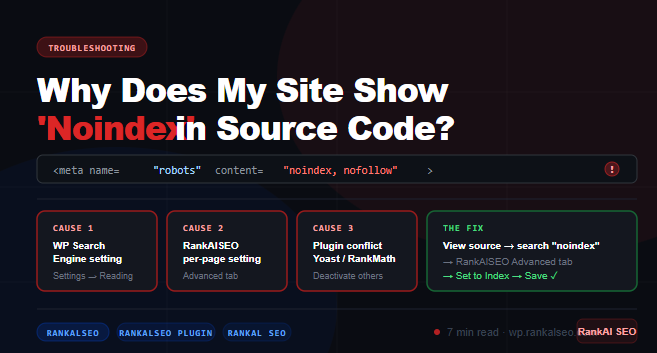
<meta name="robots" content="noindex, nofollow">That single line tells Google: do not index this page. If it’s on pages that should be ranking, this is a serious problem. Here’s every possible reason it appears, and exactly how to remove it using the RankAlSEO plugin.
What does noindex actually do?
The noindex directive is an instruction to search engine crawlers. When Googlebot sees it, it will not include that page in the search index. The page won’t appear in Google search results — regardless of how many backlinks it has, how good the content is, or how long it’s been live.
nofollow tells crawlers not to follow the links on the page. The two are often combined as noindex, nofollow, but they work independently. A page can be noindex but still have its links followed.
Finding noindex on pages you want ranked is one of the most damaging SEO mistakes possible — and it’s often completely invisible until you specifically look for it.
Reason 1 — WordPress “Search Engine Visibility” setting
This is the most common cause, especially on new WordPress sites. WordPress has a built-in setting called Search Engine Visibility that, when enabled, adds noindex to every page on your site.
Check it immediately:
- Go to Settings → Reading in your WordPress admin
- Look for “Search engine visibility”
- Make sure the checkbox “Discourage search engines from indexing this site” is unchecked
- Click Save Changes
This setting is sometimes accidentally enabled when setting up a staging or development environment, and then forgotten when the site goes live. It puts noindex on everything — homepage, posts, pages, archives, all of it.
Reason 2 — RankAlSEO plugin set to noindex on a specific post or page
The RankAlSEO plugin gives you per-page control over indexing. If a specific page is showing noindex but others aren’t, check the RankAlSEO settings for that page:
- Edit the post or page in WordPress
- Scroll down to the RankAlSEO meta box
- Click the Advanced tab
- Look for the “Robots meta” or “Allow search engines to index this page” setting
- Make sure it is set to Index (not Noindex)
- Save the page
The RankAlSEO plugin also lets you set site-wide defaults. If you accidentally set the global default to noindex, it will apply to all posts of a certain type. Check RankAlSEO → Settings → Default Meta and verify the defaults are set to index, follow.
Reason 3 — RankAlSEO set the page type to noindex by default
The RankAlSEO plugin automatically sets certain page types to noindex by default — and for good reason. These include:
- Tag archives — thin, auto-generated pages with little unique content
- Author archives — especially on single-author sites where they duplicate post content
- Date archives — almost always duplicate content
- Search result pages — dynamic pages that Google shouldn’t index
- Paginated pages (page 2, 3… of archives) — often thin and duplicative
If you’re seeing noindex on these page types, it’s intentional and correct. You generally should not index tag archives, author archives, or date-based archives unless you have a specific reason and substantial unique content on them.
If you want to change the defaults for these page types, go to RankAlSEO → Settings → Content Types and update the indexing rules per content type.
Reason 4 — Another SEO plugin is adding noindex
If you have Yoast SEO, RankMath, SEOPress, All in One SEO, or any other SEO plugin installed alongside the RankAlSEO plugin, they can conflict. Multiple SEO plugins fighting over the robots meta tag often results in noindex appearing unexpectedly — sometimes from settings you didn’t touch in the other plugin.
The fix: use only one SEO plugin at a time. The RankAlSEO plugin is a full replacement for all of them. Deactivate any other SEO plugins completely, then check your pages again. Go to Settings → Permalinks → Save Changes after deactivating to ensure the rewrite rules are clean.
Reason 5 — Your theme is adding noindex
Some themes add their own robots meta tags, particularly older themes or themes that include built-in SEO features. Check your theme’s header.php file for any hardcoded <meta name="robots"> tags and remove them — let the RankAlSEO plugin handle all robots meta output.
You can also check by temporarily switching to a default WordPress theme (Twenty Twenty-Four) and viewing the source to see if the noindex disappears. If it does, your theme is the source.
Reason 6 — Password-protected pages
WordPress automatically adds noindex to password-protected pages. This is intentional — you generally don’t want Google trying to index content that requires a password. If you’ve password-protected a page that should be public, remove the password protection.
Reason 7 — Staging or development environment leaking to production
If you moved your site from staging to production and forgot to update the robots settings, your production site may still have staging-era noindex directives. This is especially common when using staging plugins (WP Staging, Duplicator, etc.) that add noindex to the staging environment automatically.
After any migration, always:
- Check Settings → Reading → uncheck “Discourage search engines”
- Check RankAlSEO → Settings → verify global defaults are set to index
- View source on your homepage and key pages to confirm
noindexis gone
How to find all noindex pages on your site
Rather than checking pages one by one, use these methods to find all affected pages at once:
Google Search Console — Coverage report
Go to Google Search Console → Pages (under Indexing). Look for pages listed under “Excluded” with the reason “Excluded by ‘noindex’ tag”. This shows you every URL Google has seen with a noindex directive.
Screaming Frog (free tier)
Screaming Frog’s free tier crawls up to 500 URLs. After crawling, filter by Response Codes → 200 OK, then check the Meta Robots column to find all pages with noindex. This works regardless of whether Google has crawled the pages yet.
RankAlSEO Tools — Meta Checker
Use the free Meta Tag Checker tool on any specific URL to instantly see the robots meta tag, canonical, title, description, and Open Graph tags live from the page.
How to verify noindex is removed
After making any changes, always verify with the page source directly:
- Open the page in an incognito window
- Press
Ctrl+U(Windows) orCmd+U(Mac) to view source - Press
Ctrl+Fand search fornoindex - If it’s gone — you’re fixed
- If it’s still there — keep working through the list above
After confirming it’s removed, go to Google Search Console and request indexing for any affected pages. Google won’t automatically re-crawl the pages overnight — you need to nudge it.
When noindex is the right choice
Not all noindex is bad. There are pages you actively want to keep out of Google’s index:
- Thank-you pages after form submissions or purchases
- Checkout and cart pages
- Login and account pages
- Admin and backend pages
- Thin tag archives and author archives
- Duplicate or near-duplicate content
- Staging and development environments
- Privacy policy and terms pages (optional — some prefer to index these)
The RankAlSEO plugin makes this easy — you can set noindex on individual pages or entire content types in a few clicks, without touching code.
Summary
If you find noindex in your site’s source code on pages that should be ranking, work through this checklist:
- Settings → Reading — uncheck “Discourage search engines”
- RankAlSEO plugin → post/page Advanced tab — check per-page indexing setting
- RankAlSEO plugin → Settings → Content Types — check global defaults
- Deactivate other SEO plugins — conflicts cause unexpected noindex
- Check your theme’s header.php — remove any hardcoded robots meta
- Remove password protection on pages that should be public
- Post-migration check — always verify after moving from staging
Once removed, request re-indexing in Google Search Console. Most pages will be re-indexed within a few days.
Need help tracking it down? Open a support ticket (PRO users) with your site URL and we’ll identify exactly where the noindex is coming from.
RankAl SEO PRO gives you unlimited AI content generation, daily rank tracking, full-site audits, and WooCommerce SEO — all inside WordPress. From €8.99/month.