You just installed RankAl SEO, headed to yourdomain.com/sitemap.xml to verify everything’s working — and got a blank page, a 404, or raw XML with no stylesheet. You didn’t do anything wrong. Here’s exactly why it happens and how to fix it in 10 seconds.
Why this happens
WordPress uses a system called rewrite rules to map pretty URLs — like /sitemap.xml — to the actual PHP code that generates them. When you install a new plugin that registers custom URL endpoints, WordPress needs to be told to rebuild that map.
This rebuild is called flushing the rewrite rules. It happens automatically when you activate a theme or plugin — but only if WordPress has write access to the database at that exact moment, and only if the activation hook fires correctly. On some hosting environments, shared hosts in particular, this doesn’t always go through cleanly on first activation.
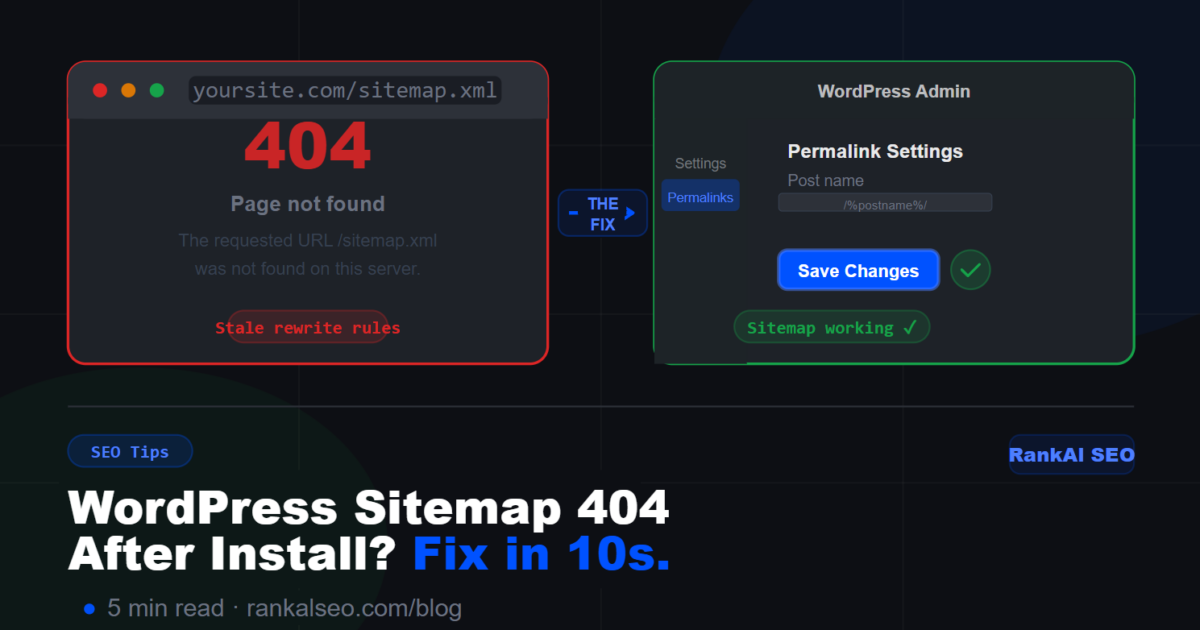
The result: RankAl SEO is active, the sitemap endpoint is registered in code, but WordPress’s internal routing table doesn’t know about it yet. Every request to /sitemap.xml falls through to a 404.
The fix — 10 seconds
Go to Settings → Permalinks in your WordPress admin. Don’t change anything. Just scroll to the bottom and click Save Changes.
That’s all. Saving the permalinks page forces WordPress to flush and rebuild its rewrite rules — which registers the /sitemap.xml endpoint properly. Go back to yourdomain.com/sitemap.xml and it’ll load.
Why we don’t fix this automatically
You might be wondering: why doesn’t RankAl SEO just flush rewrite rules on activation and avoid the problem entirely?
We do call flush_rewrite_rules() on activation. The issue is that on certain hosting setups — particularly shared hosts with persistent object caching, or environments where the activation request times out — the flush doesn’t write to the database in time. WordPress silently fails, and the old (pre-plugin) routing table stays in place until something forces a rebuild.
Saving the Permalinks page is WordPress’s own built-in mechanism for forcing a rewrite flush. It always works because it runs synchronously in a full admin request with all database connections available. It’s the most reliable fix, which is why it’s the official recommendation from WordPress core itself.
Still getting a 404?
If saving permalinks doesn’t fix it, work through this checklist:
1. Check your .htaccess file
On Apache servers, WordPress rewrites go through .htaccess. If the file is missing, malformed, or not writable, pretty URLs (including sitemaps) won’t work. Look for this block in your .htaccess:
# BEGIN WordPress
<IfModule mod_rewrite.c>
RewriteEngine On
RewriteBase /
RewriteRule ^index\.php$ - [L]
RewriteCond %{REQUEST_FILENAME} !-f
RewriteCond %{REQUEST_FILENAME} !-d
RewriteRule . /index.php [L]
</IfModule>
# END WordPress
If this block is missing or corrupted, WordPress can’t route requests correctly. You can regenerate it by saving permalinks — but only if WordPress has write access to .htaccess. Check file permissions (should be 644) and ownership.
2. Check if mod_rewrite is enabled (Apache)
On Apache, the rewrite engine needs to be enabled. If your host has disabled mod_rewrite, no pretty URLs will work — not just sitemaps. Contact your host and ask them to enable it, or check your PHP info page for mod_rewrite in the loaded modules list.
3. Check for Nginx custom rules (if on Nginx)
Nginx doesn’t use .htaccess. If you’re on Nginx (common with Hestia, RunCloud, GridPane, and most VPS setups), your server config needs to explicitly pass requests through index.php. A standard WordPress Nginx config should include:
location / {
    try_files $uri $uri/ /index.php?$args;
}
If your server config has a hardcoded location block for /sitemap.xml that points somewhere else (some server templates do this for Yoast or other plugins), it’ll intercept the request before WordPress sees it. Remove or update that block.
4. Conflict with another SEO plugin
If you have Yoast SEO, RankMath, or another SEO plugin installed alongside RankAl SEO, they may both be trying to register /sitemap.xml. Whichever registered first wins — and since the other plugin’s sitemap endpoint is already in the routing table, saving permalinks will keep pointing to it.
The fix: deactivate the other SEO plugin completely, then save permalinks again. RankAl SEO is designed to be a full replacement — running two SEO plugins simultaneously causes conflicts across sitemaps, meta tags, and schema output.
5. Caching plugin serving a cached 404
If you have a caching plugin (WP Rocket, W3 Total Cache, LiteSpeed Cache, etc.), it may have cached the 404 response from before the sitemap was working. Clear all caches after saving permalinks, including any server-level cache your host provides.
How to verify your sitemap is working correctly
Once the 404 is resolved, here’s how to confirm everything is healthy:
- Visit the sitemap directly:
yourdomain.com/sitemap.xml— you should see a styled XML page (or raw XML if no XSL stylesheet is present) - Check the sitemap index: RankAl SEO generates a sitemap index with sub-sitemaps for posts, pages, and custom post types
- Submit to Google Search Console: Go to Search Console → Sitemaps → enter
sitemap.xml→ Submit. Google will validate it and show you the indexed URL count within a few hours - Check for errors in Search Console: After 24 hours, revisit the Sitemaps section to see if Google found any issues
Preventing this on new installs
If you’re setting up WordPress fresh and plan to use RankAl SEO from the start, here’s the recommended order:
- Install and activate WordPress
- Go to Settings → Permalinks → choose Post name → Save Changes (do this before installing any plugins)
- Install and activate RankAl SEO
- Go to Settings → Permalinks → Save Changes again
- Visit
yourdomain.com/sitemap.xmlto verify
That extra save after activating the plugin takes two seconds and ensures the routing table is always up to date.
A note for developers
If you’re deploying WordPress programmatically (WP-CLI, Composer, staging-to-production pushes), the same issue applies. After activating RankAl SEO via WP-CLI, run:
wp rewrite flush --hardThe --hard flag forces a full rewrite rule regeneration and writes the updated rules to .htaccess (on Apache) or the database. Without it, wp rewrite flush only updates the database cache and may not propagate to the web server config.
If you’re using a deployment script, add this as a post-deploy step alongside your other WP-CLI commands.
Summary
The sitemap 404 after installing RankAl SEO is almost always caused by stale rewrite rules — WordPress’s internal URL routing table hasn’t been updated to include the new sitemap endpoint. The fix is:
- Settings → Permalinks → Save Changes — works 95% of the time
- Check
.htaccessif on Apache - Check Nginx config if on Nginx
- Deactivate conflicting SEO plugins
- Clear caching plugins
wp rewrite flush --hardfor CLI deployments
If none of the above resolves it, reach out via support with your hosting environment details and we’ll dig in.
RankAl SEO PRO gives you unlimited AI content generation, daily rank tracking, full-site audits, and WooCommerce SEO — all inside WordPress. From €8.99/month.